
A set list is a list of songs that you want to play together. You can use set lists to group songs together for a particular occasion, such as a gig or a church service, and to control the order in which they are played.
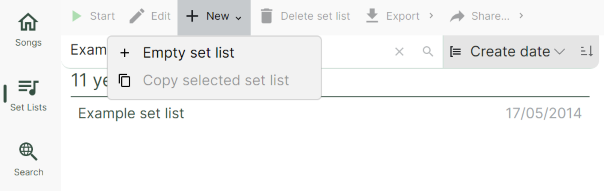
You can start a new set list from the set list library by tapping the New/Empty set list menu item in the toolbar:
Or from the song library by selecting the song you want to start the set list with and tapping Set list > Start a new set list:
Once created you can give the set list a name, and optionally a date that the set list will be used.
Adding songs
In addition to using the Set list > Add to current set list toolbar button in the song library, you can also:
Keyboard & mouse Drag and drop songs from your song library into the desired location in the set list.
Touch Swipe a song to the right and it will be added to the current set list.
Removing a song from the set list
Selecting a song and pressing the delete button on the right side of the set list will remove it from the set list, but not from your library.
Touch Swiping the song to the left will remove it from the set list.
Re-ordering set list songs
Drag and drop set list songs into their required places using the grab handle on the left side of the song. Alternatively, you can use the up and down buttons at the right side of the set list to re-order the currently selected song.
See also
- Docking the set list for choosing where the set list appears while you play
- Copying set lists for how to quickly create a new set list based on an existing one